
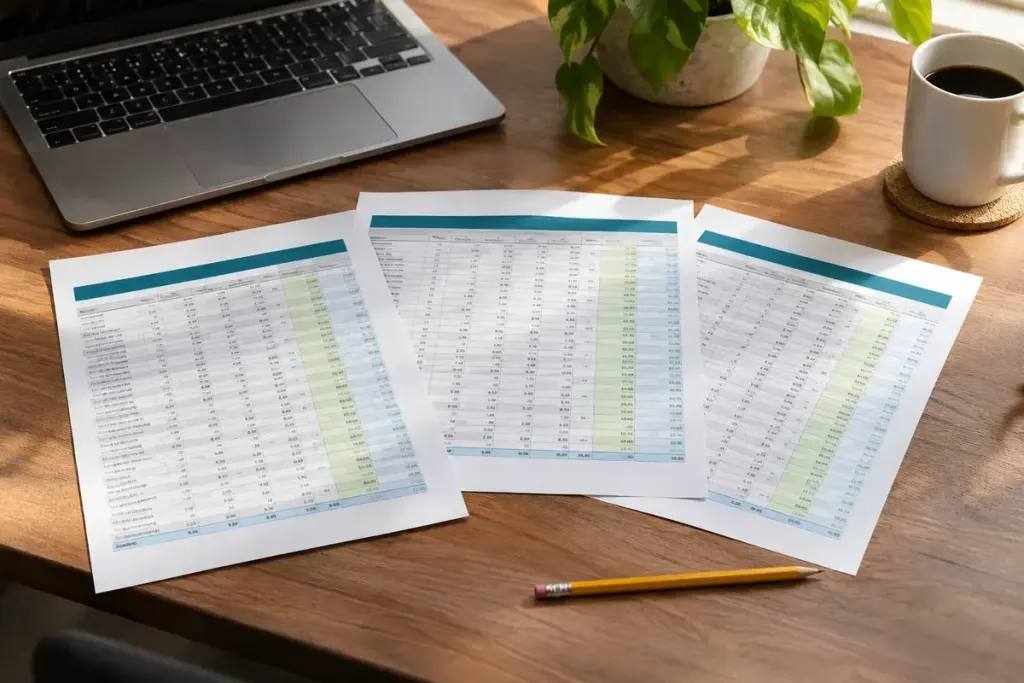
Page two of a printed spreadsheet lands on a desk by itself. It has several columns of dates and amounts, but no labels. The reader now has to find page one before knowing which figure means ordered, delivered or outstanding.
Repeating the heading row on each printed page solves this specific problem. It is different from freezing a row while scrolling on screen: a convenient screen view does not automatically produce a self-explanatory printout.
Choose the rows that actually explain the table
For supported desktop versions of Excel, Microsoft’s print-title instructions describe the Page Layout settings for repeating rows at the top. In the relevant box, $1:$1 identifies row one; select the actual heading row or rows used in your sheet. Check the instructions for your version rather than assuming the web app has identical controls.
The important decision comes before the click. If row one contains a report title but row three contains the column names, repeating only row one will not solve the problem. If you select too many rows, the start of the data may appear again on every page.
Use a deliberately small practice report
Create a harmless practice sheet with fictional columns for item, quantity and location. Make it long enough to span at least two pages. Set its print titles, then inspect page two in the print preview.
Ask three questions: are all column labels present, do they align with the correct values, and has an ordinary data record accidentally been repeated as part of the heading? A page can look tidy while answering the last question incorrectly.
Also inspect the final page. A wide title or merged heading can behave differently from the table below it when scaling is changed. Resist shrinking an entire long report onto one page just to avoid pagination; the text still needs to be readable at its intended size.
Before sharing a PDF export, open the exported file and check the later pages there too. The useful result is not merely a setting that says “repeat”. It is a document whose pages remain understandable when printed, separated, forwarded or read in a different order.